
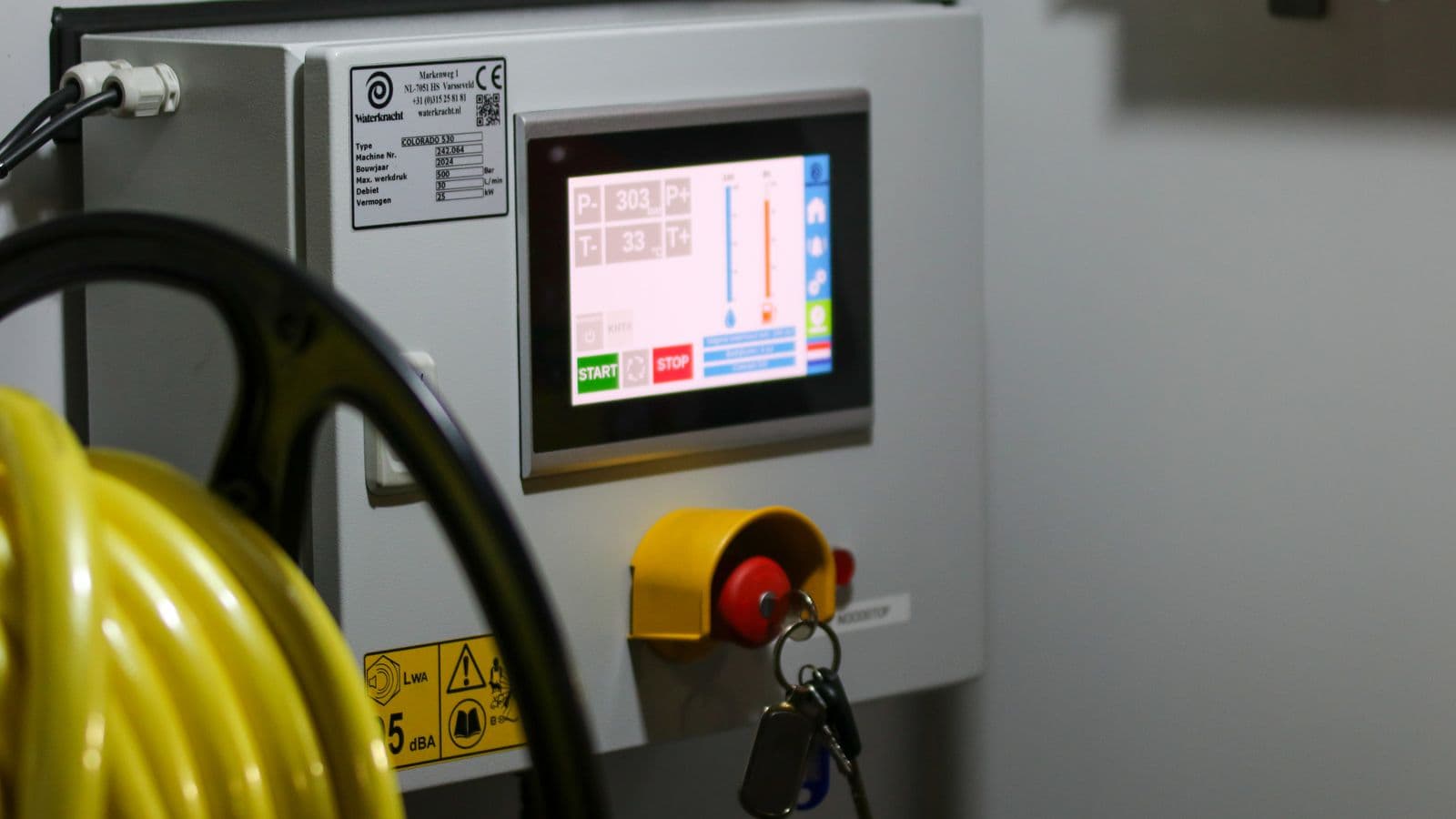
Does it take an operator three taps and ten seconds to spot a fault and respond correctly, or do they get lost across seven menus and burn two minutes? That difference directly determines a shift's total downtime. HMI (Human-Machine Interface) panels shape the quality of that interaction between operator and machine, often overlooked, yet one of the highest-return automation investments a facility can make. A poorly designed HMI can undermine the value of an otherwise technically sound automation system through operator error alone. This piece covers what HMI gives the operator, the principles good design rests on, how it reduces operator error, and how it integrates with PLC and SCADA.
What Is HMI, and What Does It Give the Operator?
An HMI is the touch or button-based screen where an operator visually monitors a machine's or line's status and enters control commands. The PLC runs the logic in the background; the HMI is that logic's human-readable, manageable face.
The core value HMI delivers to the operator:
- Real-time status visibility: what stage the machine is at, and which parameters are within normal range, is visible at a glance.
- Fast response: when an alarm fires, which equipment is responsible and what action is recommended is shown directly on screen.
- Simplified control: instead of physical buttons and switches, recipe selection, parameter entry, and start/stop commands can be given through a touchscreen.
- Shorter training time: a new operator learns a machine's operating logic by following the visual flow on screen, with a well-designed HMI, rather than memorizing the physical panel.
HMI vs. SCADA: the Difference
These two concepts get confused often, but they operate at different scales. An HMI is typically a local screen for a single machine or line, on the floor next to that equipment. SCADA is the higher-level system that centrally collects data across the whole facility, or even multiple sites, logs it historically, and provides remote access.
In practice, the two work together: the operator manages the machine on the floor through the HMI, while the facility manager monitors the overall status of every line through SCADA. Data on an HMI screen also feeds into SCADA, becoming part of centralized monitoring, an architecture we cover in depth in our SCADA installation guide.
Core Principles of Good HMI Design
An HMI screen showing technically correct data isn't enough, it needs to present that data so the operator can interpret it quickly and correctly. Industry-accepted design principles include:
- Clarity: the screen shouldn't carry unnecessary visual noise, excessive color, excessive animation, excessive information. Only what's needed to make a decision right now should be surfaced.
- Consistent color coding: red only for alarm/fault, yellow only for warning, green only for normal operation, inconsistent color use slows down the operator's decision-making.
- Alarm prioritization: critical alarms should be shown large, clear, and in the most visible location on screen; routine informational messages should be kept in a separate, smaller area.
- Few clicks, fast access: the number of taps/clicks needed to reach critical information (status, alarm, emergency stop) should be minimized, ideally no more than 1-2 taps from the home screen.
- Logical hierarchy: screens should be organized to mirror the physical flow of the process (in a filling line, the screen sequence should follow fill → cap → label), the screen structure should match the operator's mental model.
- Readable typography and icons: font and icon size should account for on-floor lighting conditions, gloved use, and viewing distance.
- Clear feedback: when the operator issues a command (start, stop, recipe change), the system needs to instantly confirm visually that the command was received and processed, otherwise the operator re-issues the command repeatedly, which itself causes errors.
Alarm Screen Design: the Most Critical Component
The area where HMI design goes wrong most often is the alarm screen. Under industry-accepted ISA-101 design principles, an alarm screen should have:
- Classification: alarms visually distinguished by criticality level (emergency, high, low, informational).
- Filtering and sorting: the operator should be able to see active alarms ranked by importance, without having to hunt for the critical one among dozens of low-priority alarms.
- Root-cause linkage: where possible, an alarm should show which sensor and which threshold was breached, rather than just saying "there's a fault."
- Acknowledge logic: the operator confirming they've seen an alarm should be a separate step from the alarm actually being resolved, this prevents an issue from being forgotten in a "seen but not fixed" state.
A poorly configured alarm screen creates the same "alarm fatigue" problem we cover in our SCADA guide, at the HMI level, when an operator sees constant warnings, noticing a genuine fault gets delayed.
How HMI Reduces Operator Error
A significant share of industrial accidents and production interruptions trace back to operator error caused by poor interface design. A well-designed HMI reduces error through these mechanisms:
- Blocking incorrect commands: a confirmation screen is required before a critical command (draining a tank, for example) is issued; commands triggered by an accidental touch are blocked.
- Parameter limiting: values the operator can enter (temperature, speed, pressure) are constrained to the machine's safe operating range; an out-of-range entry isn't accepted.
- Visual procedure guidance: for a complex startup or mold-change procedure, the screen guides the operator step by step, preventing a step from being skipped.
- State consistency: there's no lag or mismatch between what the screen shows and the machine's actual state, this prevents the operator from acting on a false assumption.
All of these mechanisms aim to structurally prevent error through interface design, rather than relying on the operator's experience or attention, an approach that aligns with the "error-proofing" (poka-yoke) design principle.
How HMI Integrates with PLC and SCADA
Technically, an HMI is a client that visualizes the data the PLC produces. The integration works like this:
- Reading data from the PLC: the HMI reads the PLC's memory addresses (registers) directly or over a communication protocol (Modbus, Profinet).
- Visual mapping: each data point read is mapped to a gauge, graph, color change, or alarm on screen, this mapping is configured at design time.
- Writing commands: commands the operator issues from the screen are written by the HMI into the corresponding PLC memory address; the PLC processes that command on its next scan cycle.
- Feeding into SCADA: the same data points can optionally also feed into the SCADA server, giving both local (HMI) and centralized (SCADA) visibility.
This three-layer architecture (PLC-HMI-SCADA) lets each layer focus on its own job: the PLC executes control, the HMI provides real-time interaction on the floor, and SCADA delivers facility-wide centralized visibility and historical analysis.
HMI Hardware Selection
Criteria worth weighing when selecting HMI hardware:
- Screen size and resolution: chosen based on the density of information to be shown; cramming too much information into too small a screen destroys clarity.
- Industrial durability: an IP65 or higher protection rating and resistance to dust and moisture are essential for an industrial environment.
- Touch technology: resistive rather than capacitive touch should be preferred where gloved use is expected.
- Communication compatibility: the model needs to support the same protocol as the existing or planned PLC.
- Remote access support: modern HMIs can support remote screen viewing (VNC-like), providing an initial diagnostic capability without a site visit.
Stages of an HMI Project
- User needs analysis: working with operators to identify which information is checked most often and which commands are issued most often.
- Screen hierarchy design: planning the navigation logic between the home screen, sub-screens, and the alarm screen.
- Visual design: color coding, typography, and icon set are built to a consistent standard.
- PLC integration: screen elements are mapped to PLC memory addresses.
- Field testing: the screen's usability is tested with real operators under real working conditions, a stage often skipped, though it delivers the most valuable feedback.
- Training and commissioning: operators are briefed on using the new screen and the alarm-response procedure.
Common Mistakes
- Designing the screen with an engineer's mindset: trying to show every technical detail of the system on one screen buries the information the operator actually needs in noise.
- Using color coding inconsistently: using the same color for different meanings across different screens misdirects the operator's reflexive response.
- Leaving the alarm screen for last: when alarm logic is the last, rushed piece of the design, the operator faces the weakest-designed screen at the most critical moment.
- Skipping field testing: an HMI tested only in the office, from the designer's point of view, can surface unexpected difficulties under real floor conditions, gloves, lighting, distance, fast decisions under stress.
- Neglecting operator training: even the best-designed HMI produces no value if the operator doesn't know how to use it.
- Not matching hardware to environmental conditions: choosing a standard, non-industrial touchscreen for a dusty or humid floor leads to failure quickly.
FAQ
Does installing HMI require replacing the existing PLC? No, usually not. The HMI connects over the communication protocol the existing PLC already supports; a visualization layer is added without touching the PLC's logic.
How many machines can one HMI screen control? Technically, managing multiple machines from one screen is possible, but for operator efficiency, giving each machine its own clear, focused screen usually produces better results.
What's the difference between an HMI and a touch tablet or smartphone? Unlike consumer devices, industrial HMIs are built to withstand dust, moisture, vibration, and electrical noise, and are optimized for real-time PLC communication.
Is an HMI investment necessary for a small operation? A few buttons might suffice for a single, simple machine. But if the machine runs in multiple modes or the operator changes parameters frequently, even a small HMI screen noticeably cuts training time and error rate.
How many languages can an HMI screen support? Modern HMI software supports multilingual interfaces; this matters for usability when different shifts have operators fluent in different languages.
Can HMI be added to an older machine? Yes, if the machine's control layer already has a PLC added (or a controller with a communication output), the HMI can connect to it as part of a retrofit, details covered in our retrofit guide.
If the HMI fails, does the machine keep running? Usually yes, the HMI is only the visualization and command layer; the machine's core safety and control logic keeps running on the PLC. But the operator loses visibility, which complicates manual intervention.
How long does an HMI design take to complete? It depends on the number of screens and complexity; a simple single-machine HMI can be designed and commissioned in a few days, while a comprehensive HMI project for a multi-station line can take several weeks.
HMI is the critical interface that determines whether an automation investment actually gets used by the operator. Designed with clarity, consistent color coding, and correct alarm prioritization, it both reduces operator error and carries the full value of the PLC and SCADA investment onto the floor.
Let's talk through this together
The SOREAS engineering team can assess what's covered here for your specific facility. Reach out via the contact form or call us directly.